
Connect to Netlify
Complete guide: Deploy your site and connect your .arc.bd subdomain with automatic SSL
1Connect Your Repository to Netlify
- Go to netlify.com and sign in to your account.
- Click Add new site → Import an existing project.
- Select your Git provider (GitHub, GitLab, Bitbucket) and authorize Netlify.
- Choose your repository, configure build settings, and click Deploy site.
- Netlify will generate a temporary subdomain like
goplayapp.netlify.app.
2Access Domain Management in Netlify
From your project dashboard:
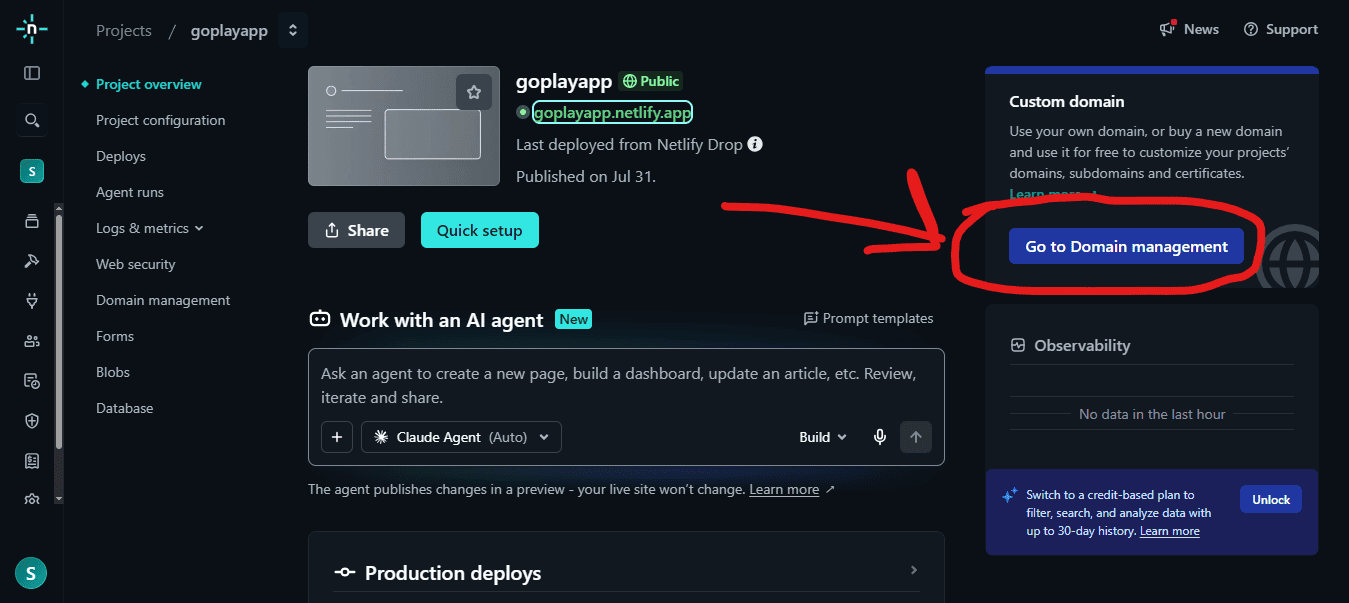
- Scroll down to the Custom domain section (top right of dashboard).
- Click the blue button Go to Domain management.
3Add Your ARC.BD Subdomain
In the Domain management section:
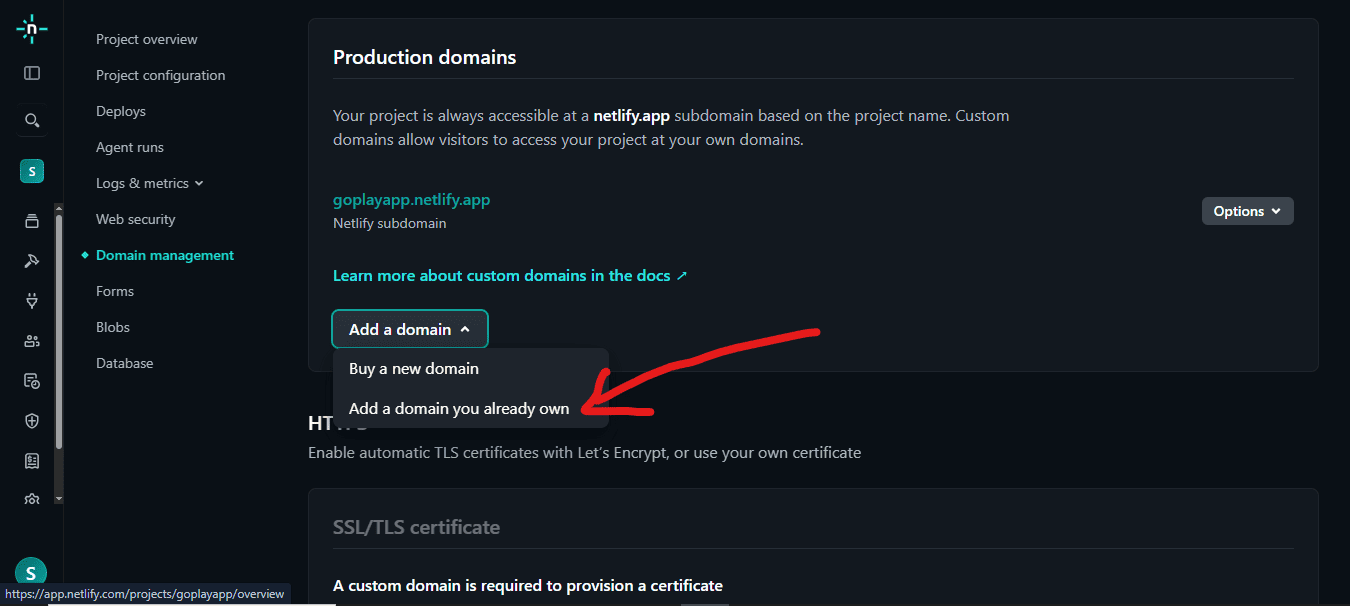
- Click Add a domain dropdown and select Add a domain you already own.
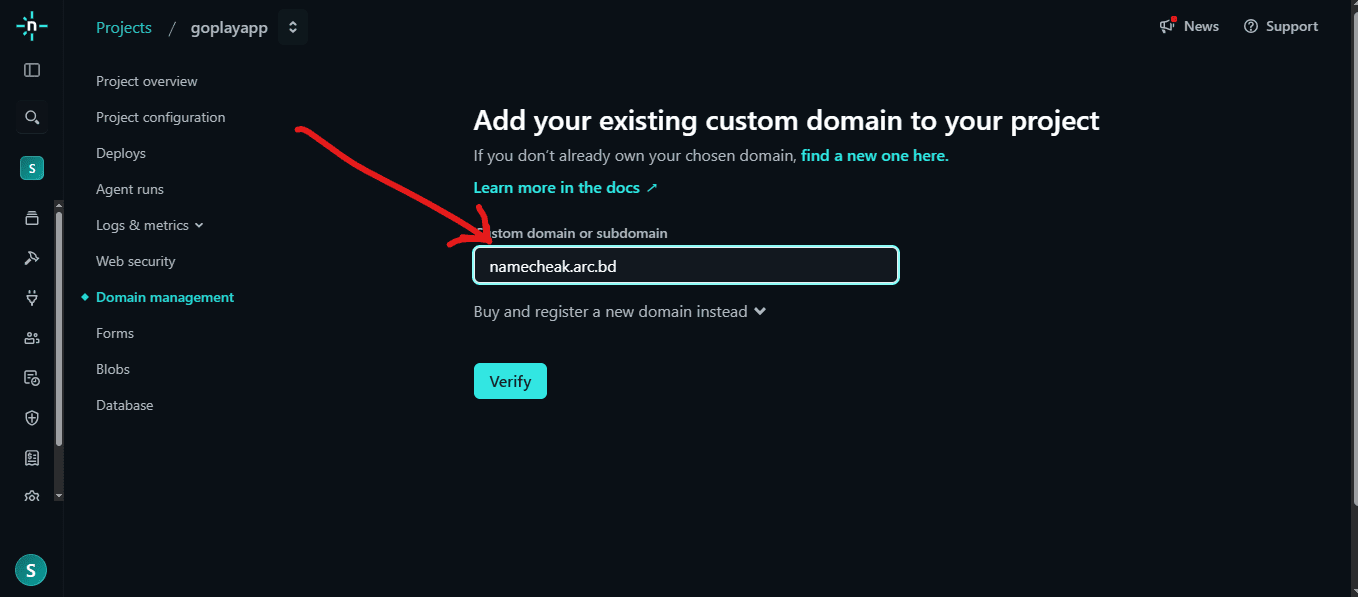
- Enter your claimed ARC.BD subdomain (e.g.,
namecheak.arc.bd). - Click Verify.
When you enter your ARC.BD subdomain, Netlify checks if it is already registered. Since arc.bd is registered to the ARC.BD platform, Netlify will ask you to verify ownership by adding a TXT record:
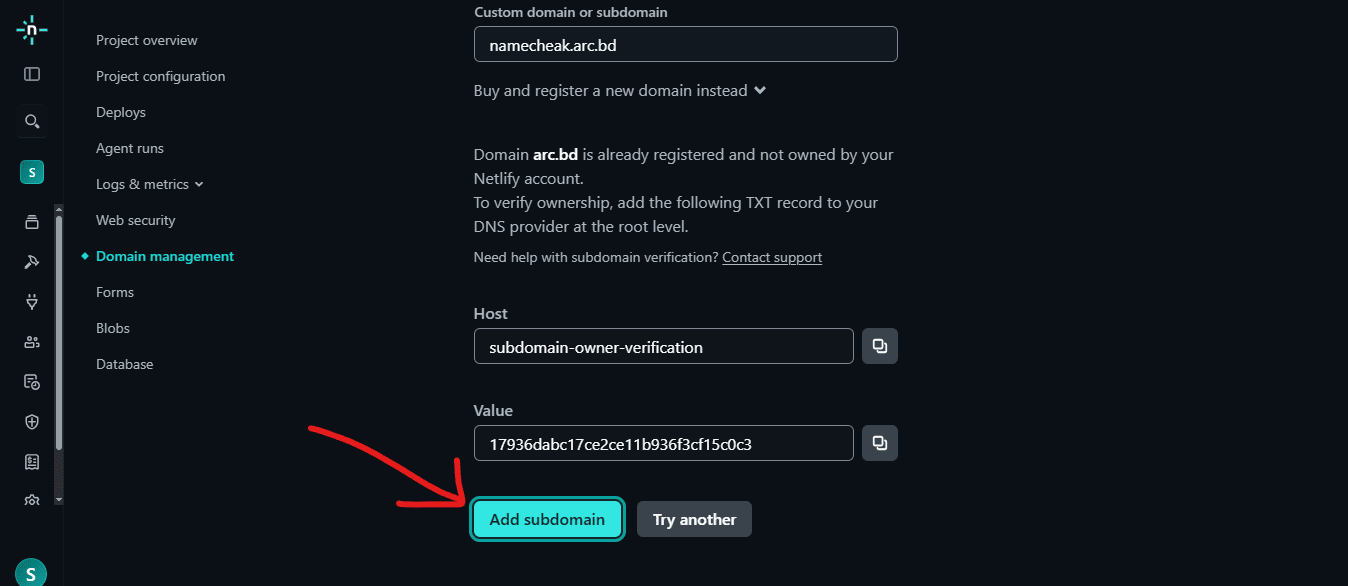
Copy these values - you will add this TXT record in the ARC.BD dashboard next.
4Add TXT Verification Record in ARC.BD Dashboard
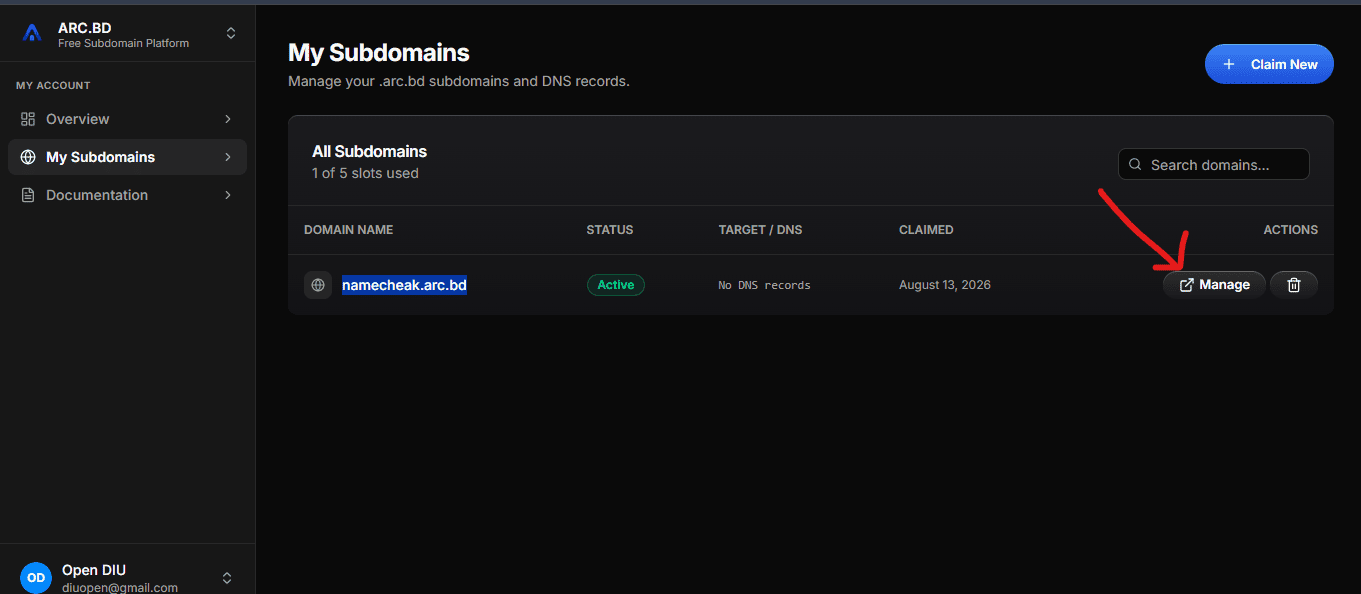
- Go to your ARC.BD Domain Dashboard.
- Click Manage on your subdomain (e.g.,
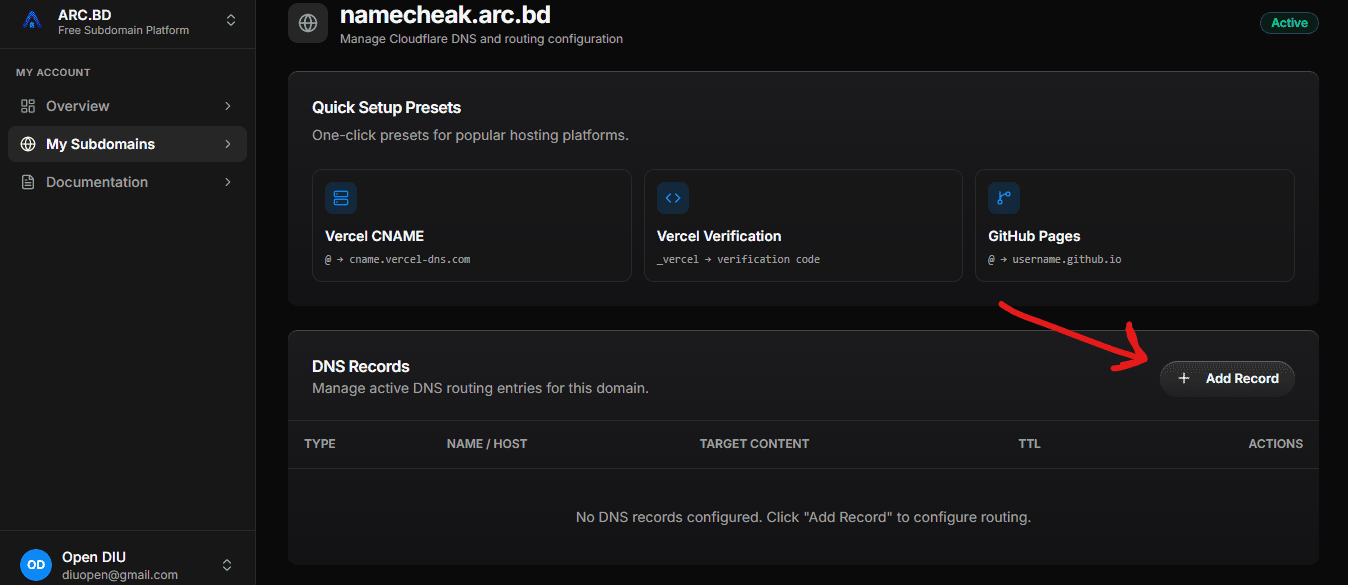
namecheak.arc.bd). - Find the Quick Setup Presets section - you will not use a preset for this step.
- Go to DNS Records section and click Add Record.
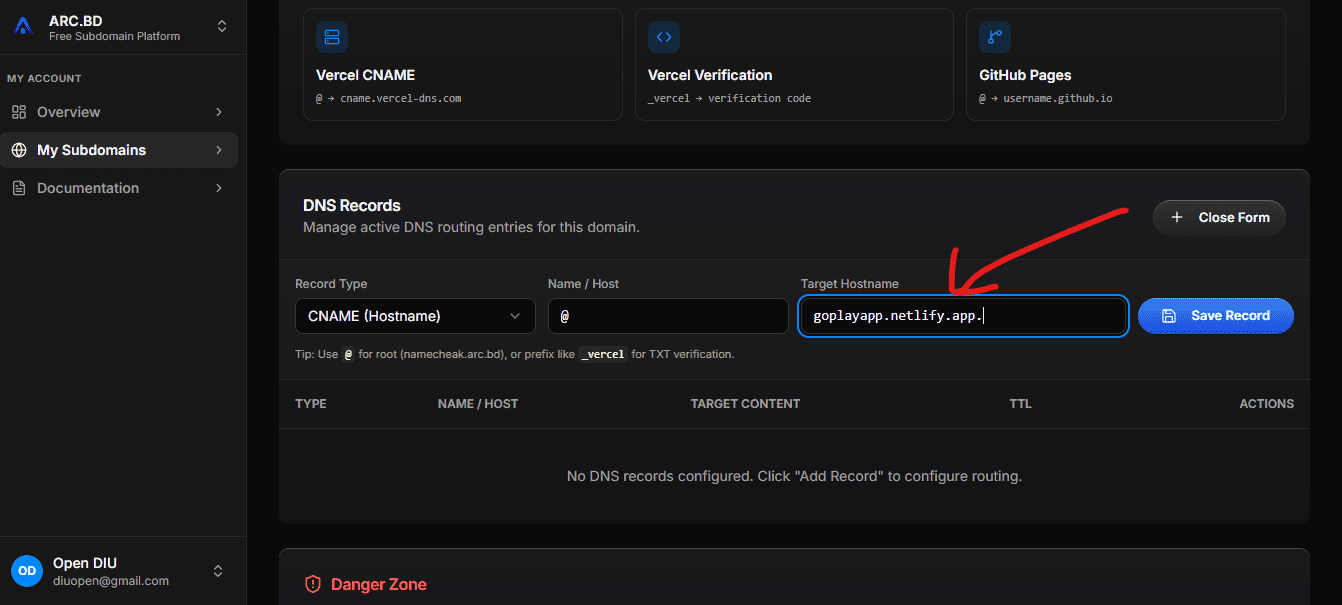
- Add the TXT record from Netlify:Type: TXTName / Host: subdomain-owner-verificationValue: (paste the code from Netlify)
- Click Save Record.
5Wait for Netlify to Detect TXT Record
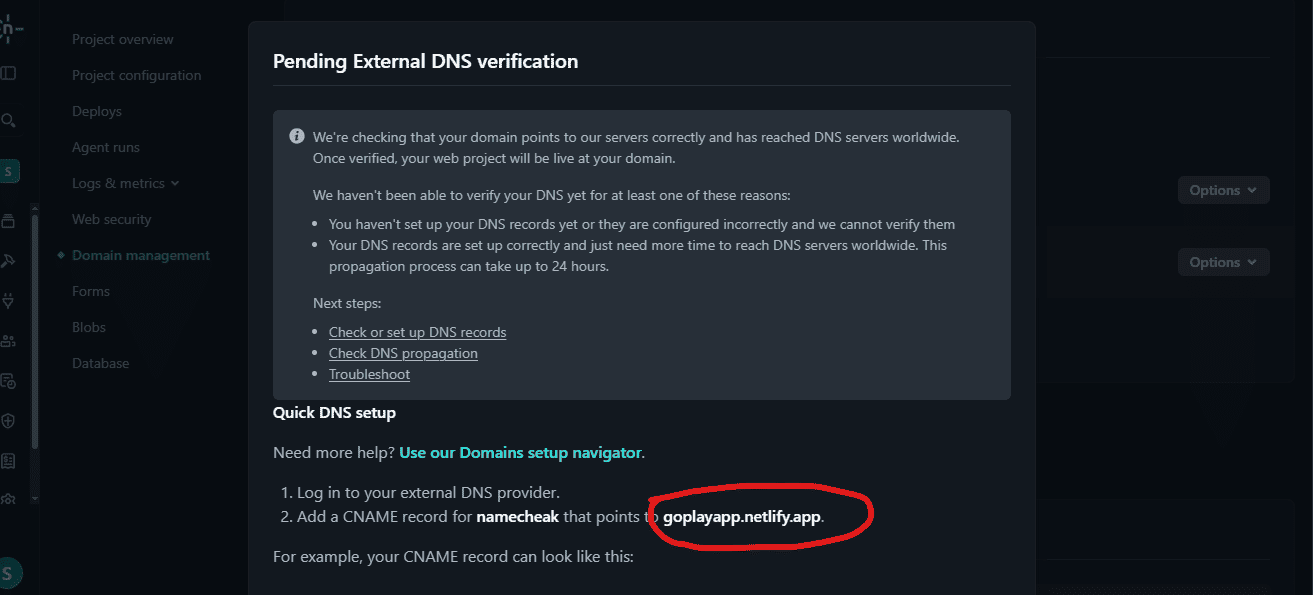
After adding the TXT record in ARC.BD:
- DNS propagation takes 5-30 minutes (usually faster).
- Netlify continuously checks for the TXT record.
- Once detected, Netlify will automatically mark the subdomain as verified.
6Configure CNAME Record in ARC.BD
Once Netlify verifies ownership, go back to your ARC.BD domain and add the CNAME record to route traffic to Netlify:
- Go to your domain DNS Records section in ARC.BD.
- Add a new record with:Type: CNAME (Hostname)Name / Host: @ (or leave empty for root)Target Hostname: goplayapp.netlify.app (your Netlify domain)
- Click Save Record.
💡 Tip: You can use the Vercel CNAME quick preset in ARC.BD as a reference, but change the target to your actual Netlify domain.
Once DNS is fully propagated and Netlify confirms the subdomain is pointing correctly:
- Netlify automatically provisions an SSL/TLS certificate via Let's Encrypt.
- This happens in the background - no action required from you.
- Check Netlify's Domain management page for a green checkmark indicating the domain is live.
- Your site will now be accessible via https://namecheak.arc.bd with full encryption.
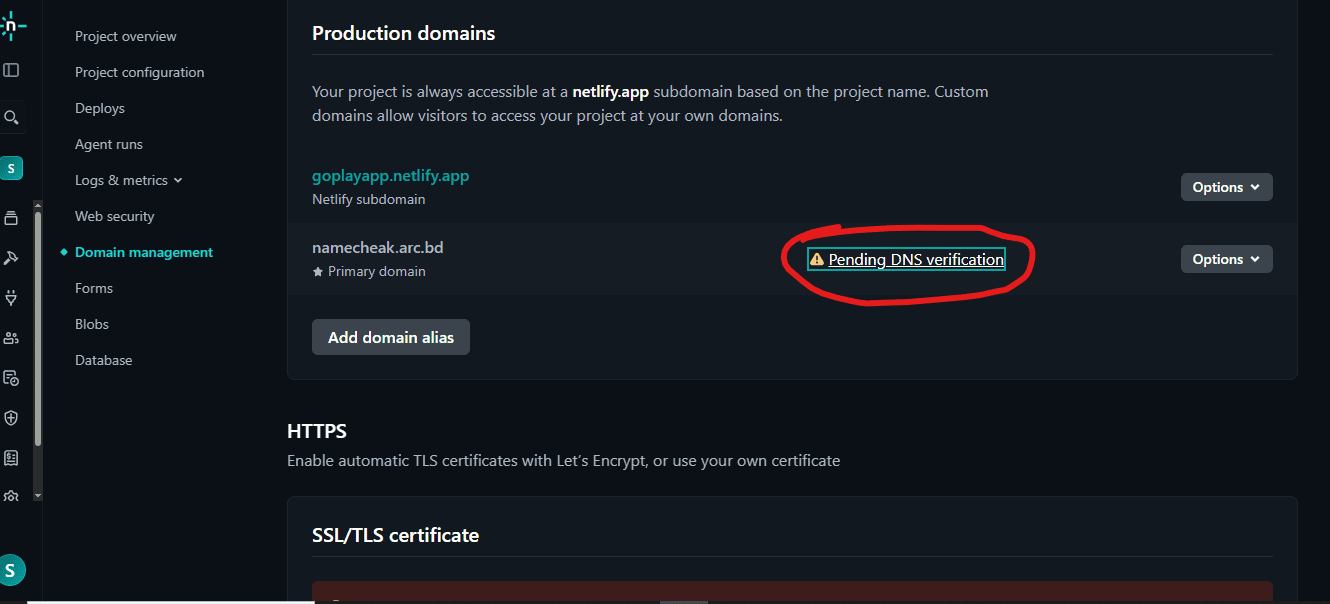
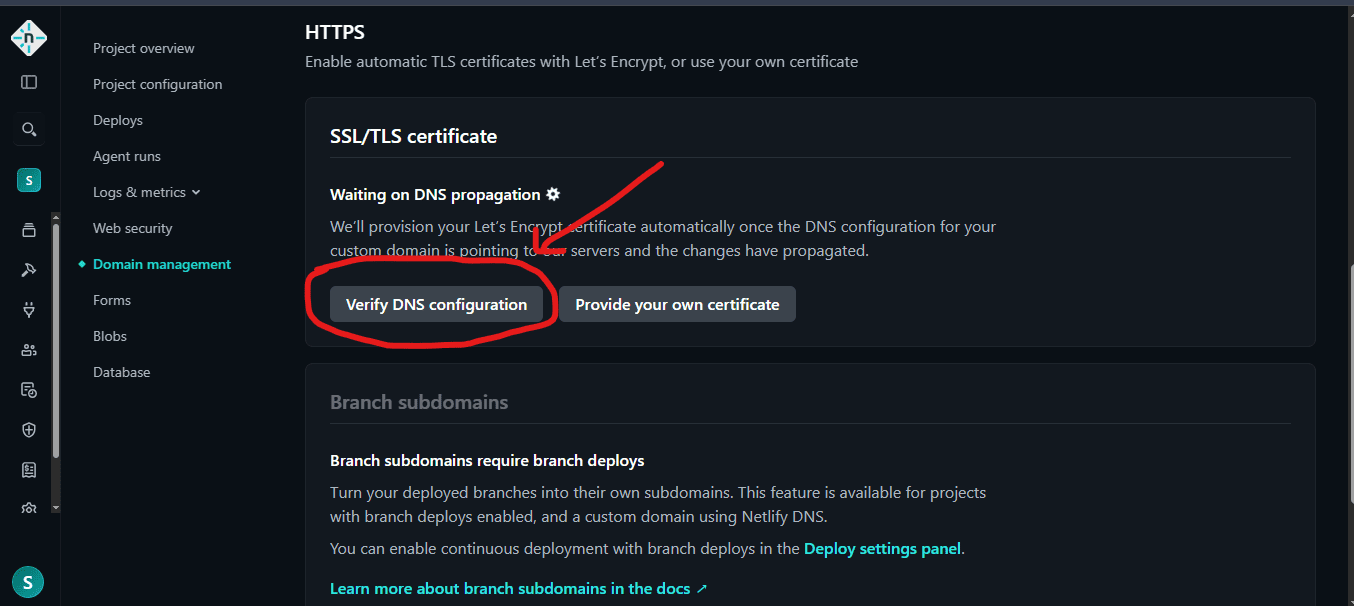
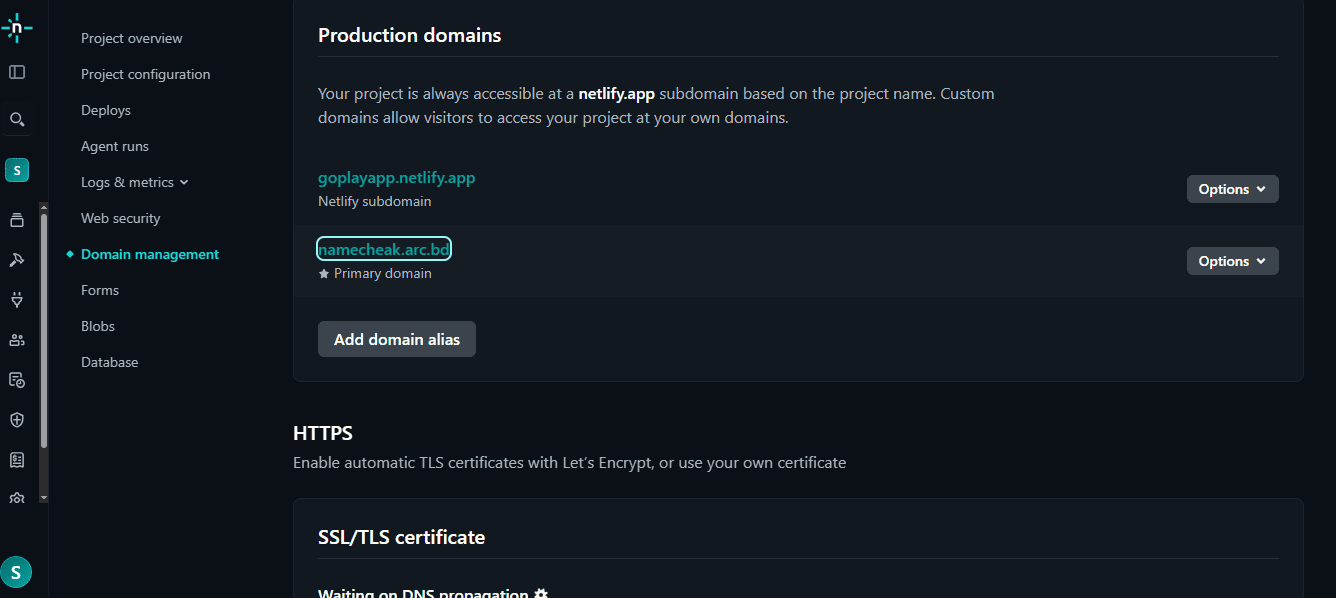
DNS changes can take 5-48 hours to propagate globally. Most changes are live within 30 minutes. Use nslookup namecheak.arc.bd or online DNS checkers to verify.
SSL provisioning usually happens within 5-15 minutes after DNS is fully propagated. If it takes longer, ensure all DNS records are correctly configured and Netlify shows the domain as verified.
Check Netlify's Custom Domains Docs or contact ARC.BD Support.